SSH login without a password
A step-by-step tutorial for automating the login process to a remote machine using SSH keys instead of a password.
 Teo ParashkevovPublished2 min read
Introduction
Logging in to a remote server using ssh by default requires administrators to authenticate themselves with the password of some user of the system that they are connecting to. This is troublesome, because it can expose not only the target system to security risks, but also accumulate a wastage of time.
The Problem
Some of the most common problems when using SSH to login to a particular remote machine are:
- The password for that particular user gets forgotten
- The password is too long and leads to mistakes during input
- There exists the security flaw of a keylistener on the client machine which is connecting to the server
- It takes time to input the password. If you are a systems administrator and you have to input a ~16 character password every time you login to a particular machine it becomes a very tedious task to do.
The Solution
Because of the nature of the SSH technology, especially under GNU/Linux systems, configuring a passwordless login is quite an easy task. The goal is for the remote machine to have the clients’ key for authentication locally and allow the machine with this particular key to access the machine without a requirement for a password input.
In order to accomplish this, you will need 2 programs: ssh-keygen and ssh-copy-id.
- Generate your local machine’s key by running the
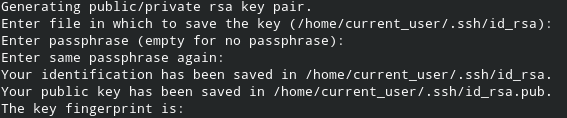
ssh-keygencommand in the terminal. It will ask for a storage location (default:/home/current_user/.ssh). Then you will be asked to input a passphrase, leave it empty! The output should look like this.
[ user@hostname ]$ ssh-keygen # generate key and store locally- Copy the generated
id_rsato the remote machine usingssh-copy-id. Use the-ioption to specify theid_rsakey and the-poption to specify the port to your remote machine.

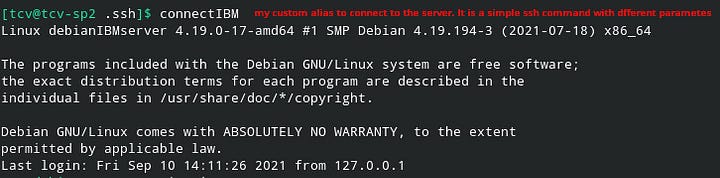
[ user@hostname ]$ ssh-copy-id -i id_rsa -p <port> <user>@<ssh_server>- Connect
Manual Configuration
If you do not have the ssh-copy-id program or you are concerned about the security of the file transfer during its execution, you can manually add the generated key on the server machine. The destination is /home/remote_user/.ssh/authorized_keys. Make sure that you are copying your public key (id_rsa.pub). Append the id_rsa.pub to the authorized_keys file.